
How to use Gemini's new Omni Flash model for video generation
A developer's guide to working with the new Gemini Omni Flash preview model and the Interactions API for conversational video editing.

I spent the last week experimenting with Google's new Gemini Omni Flash preview model. The experience completely changed how I think about video generation APIs.
Most AI video tools operate like traditional rendering pipelines. You write a prompt, wait for the job to finish, get a video, and if a detail is wrong, you start over. Omni Flash ignores that workflow. It treats video editing as an ongoing conversation.
You do not just prompt it once. Using the new Interactions API, you generate a base video and then talk to the model to refine it. You can tell it to change the lighting to sunset, or make the camera pan left instead. The model remembers the context and modifies the video in place without starting from scratch.
(For full technical details, you can check out the official Gemini Omni Flash Documentation.)
Text to Video Generation
Getting started requires the Google Gen AI SDK version 2.0 or higher. You need to use the gemini-omni-flash-preview model ID alongside the Interactions API.
Let's look at a basic example of creating a continuous smooth shot of a marble rolling on a chain reaction track.
import base64
from google import genai

client = genai.Client()

interaction = client.interactions.create(
    model="gemini-omni-flash-preview",
    input="A marble rolling fast on a chain reaction style track, continuous smooth shot."
)

with open("marble.mp4", "wb") as f:
    f.write(base64.b64decode(interaction.output_video.data))
Here is the reference video generated from a similar prompt:
You can also control the aspect ratio directly in the response format. If you want portrait videos for mobile, just set the aspect_ratio to "9:16" instead of the default 16:9.
Image to Video Generation
The physics engine is the part that actually surprised me. Older models struggled with object permanence. Omni Flash includes a built-in world model that understands physical space.
You can provide reference images with your text prompt to bring product shots or illustrations to life. The model figures out how to use the image based on your instructions.
For instance, take this simple drawing of a fish:
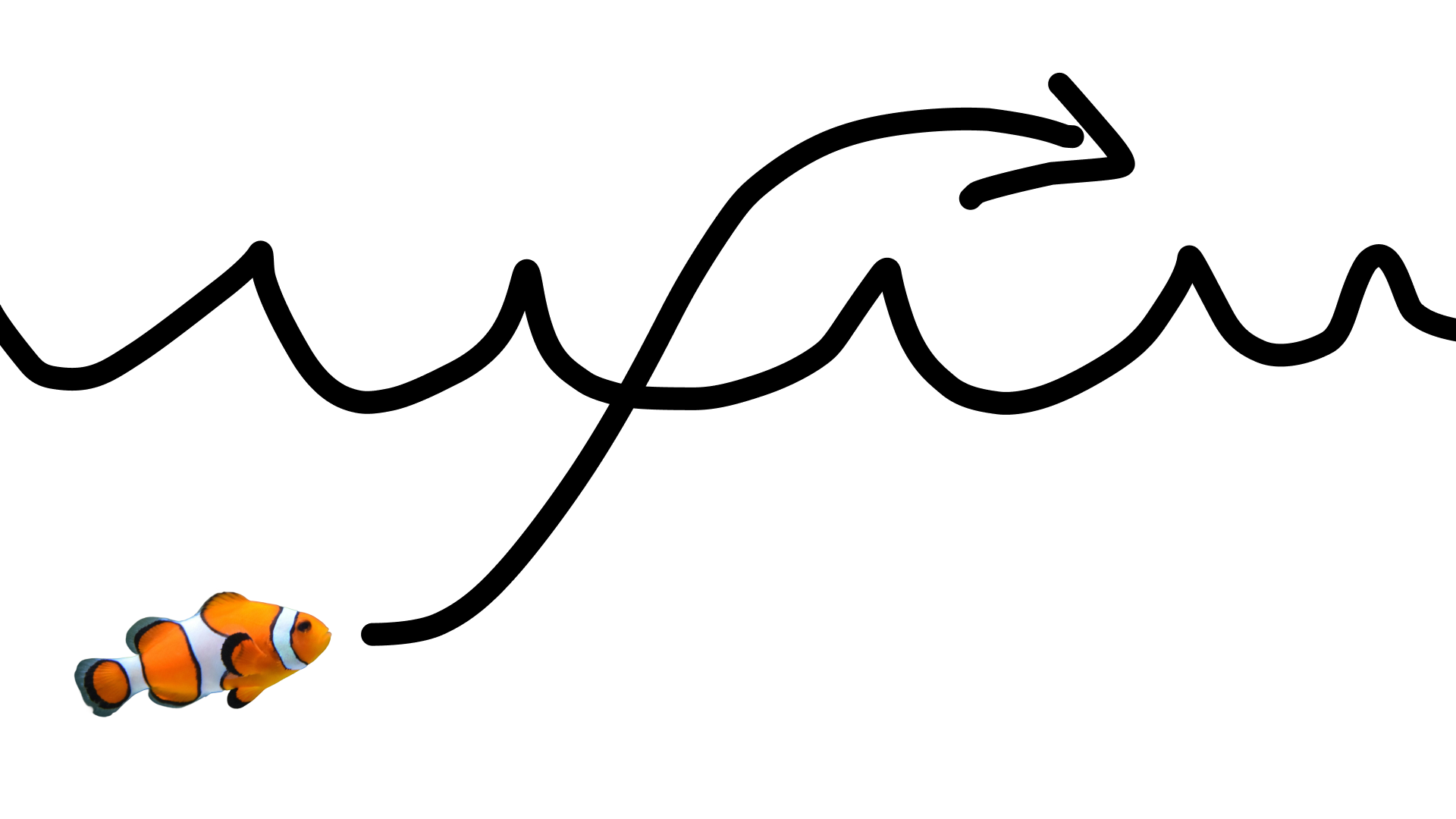
You can pass this image to the API and tell it to turn the sketch into realistic footage using only the movement as a guide.
interaction = client.interactions.create(
    model="gemini-omni-flash-preview",
    input=[
        {"type": "image", "data": base64_image, "mime_type": "image/jpeg"},
        {"type": "text", "text": "turn this into realistic footage, using the drawing only as a guide for movement, do not show the drawing in the final video"}
    ],
)
And the resulting video is incredibly realistic:
Multi-Subject References
It gets even better when you pass multiple reference images. You can give the model an image of a cat and a separate image of a ball of yarn, then prompt it to show the cat playing with the yarn. The model understands the subjects and composites them naturally.
Real-World Use Cases
The conversational workflow and built-in physics engine make Omni Flash incredibly practical for businesses looking to scale video production.
Here are a few ways companies can start applying this today:
- Marketing and Ad Agencies: Generate multiple variations of ad creative for A/B testing in minutes. You can ask the model to swap out the background, change the weather, or adjust the aspect ratio for different social platforms without organizing a new shoot.
- E-commerce Brands: Bring static product photos to life. Instead of relying on expensive product videos, brands can feed high-quality product images into the API and generate realistic showcase videos with dynamic camera movements.
- Game Development: Rapidly prototype cutscenes or animatics. Developers can provide concept art to the API and iterate on camera angles and pacing conversationally.
- Real Estate: Virtual staging and property walkthroughs. A single photo of an empty room can be transformed into a dynamic, styled video tour showing different lighting conditions or furniture setups.
The Catch
There is a catch though. You have to use the Interactions API. The older generateContent endpoint does not support multi-turn video editing. If you try to force Omni Flash through the old REST endpoints, you lose the conversational state and have to re-render the entire scene every time you make a tweak.
I highly recommend playing around in Google AI Studio before writing any code. The web interface exposes the exact same stateful editing loop that you will build with the SDK. It helps you understand how the model interprets edit requests versus full generation requests.
The model is still in preview, so you will occasionally see strange visual artifacts. But the speed is incredible, and the conversational editing loop is clearly the direction the industry is heading.
Estimate your project cost, token budget, and automation ROI
We built free, production-calibrated tools to help engineering leaders forecast token consumption, compare build vs buy scenarios, and audit code security.
Work with us on this
Secure, scalable LLM integration services. We embed current OpenAI and Anthropic models into your existing enterprise software, with the provider abstraction that lets you switch later.
Vercel AI SDK Multimodal ProcessingExtend your applications beyond text. We implement the Vercel AI SDK's multimodal capabilities to process images, video, and audio natively.
Related reading
Google shipped gemini-3.8-live and Live Extended Thinking on 15 September 2026, native speech-to-speech at about $0.005 / $0.018 per minute. Here is how it changes a production voice stack.
Flagship headlines in September 2026 describe models most teams cannot call. Here is the access table, the prices, and the routing we would run if we had to pick today.
Our monthly client reports followed a 40-line prompt nobody dared touch. I moved the whole playbook into an uploaded skill using the new uploadSkill API in Vercel AI SDK v7.
Next Article
Let's build something great.
Have a project in mind? We are an elite software and AI development studio ready to bring your ideas to production. Let's talk about your roadmap.